


Kids Mode - Kids Lock App
4.074.00 Reviews
App Specs
- Version
- Varies with Device
- Updated On
- License
- Free
- Downloads
- 100,000+
- Developer
- INNOXAPPS LLP
- Categories
- Parenting
- Platform
- Android
Screenshots
 Analysis by AppCompare
I see the main appeal of Kids Mode - Kids Lock App in a familiar parenting problem: a child wants to use your phone, but you don’t want that short break to turn into accidental calls, messages, purchases, or wandering into apps meant for adults. A kids’ mode can make that handoff feel more manageable, though it works best when you treat it as one layer of supervision rather than a substitute for it.
Where the first snags tend to appear
The idea is simple, but the useful part is the setup: deciding which apps are suitable, setting a reasonable time limit, and making sure the child understands what the locked-down screen is for. If you rush through those choices, the phone may be technically restricted but still not offer the activity your child actually wants. I’d prepare a small, purposeful selection before handing the device over instead of trying to make decisions while a child is waiting.
It also helps to distinguish between limiting access and managing every aspect of a child’s digital life. This is a screen-time and device-access tool, not a replacement for conversations about online safety or for checking what is appropriate for your child’s age. A locked-down session is most useful for a brief, supervised activity on your phone; it is less suited to parents expecting a complete family-management system across several devices.
Setting Up the Fun Zone
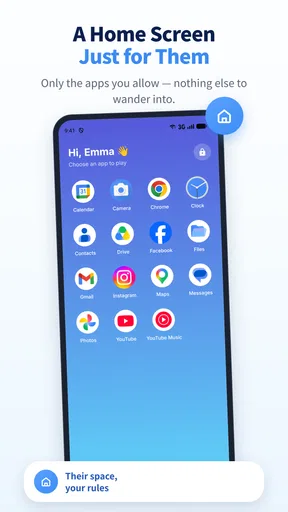
Getting started with the Kids Mode - Kids Lock App was surprisingly easy. I was expecting a maze of settings, but it turned out to be quite user-friendly. Once installed, you can customize which apps your child can access. The interface is colorful and engaging, making it quite appealing for kids, which is always a plus. You simply select the apps you’re okay with them using, and voilà, they are good to go!
Check the handoff before you need it
I’d do a short test run while you have the phone in hand. Choose the apps you want available, start a session, and check that the child can reach the intended activity without being able to wander into unrelated parts of the device. Then practise ending the session yourself. That small rehearsal is particularly useful before a restaurant visit or appointment, when you may not have the patience to troubleshoot in front of a bored child.
Keep the approved selection narrow at first. A video app, a simple game, or a drawing activity may be enough for one occasion; adding many options can make the handoff harder rather than better. The right choice depends on the child and the moment. If the phone is needed for a call or navigation, think about whether you can still use it comfortably while a child is occupied, and avoid handing it over when you need uninterrupted access to an essential function.
Peace of Mind with Parental Controls
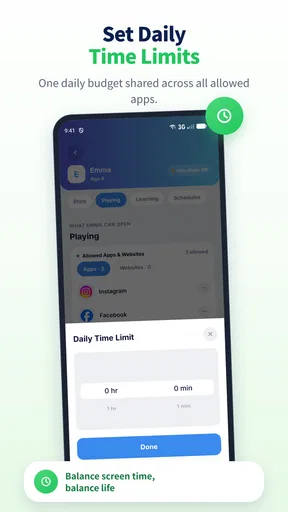
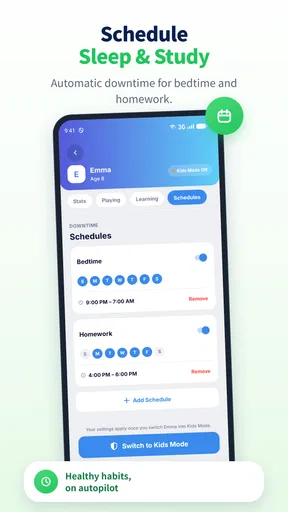
One of the standout features is the parental control options. You can set a timer, which is a lifesaver for those moments when you say "just five more minutes" but somehow it turns into an hour. The app will automatically lock other features after the set time, ensuring your child doesn’t end up binge-watching cartoons all afternoon.
Worth Reading Before You Choose

EA SPORTS FC Mobile 26 Is a Bigger Football Game, but It Takes Time

Flipboard Shows What News Apps Must Do Beyond the Feed

Switching to Android Auto Means Rethinking Your Driving Routine

Google Calendar Makes a Crowded Week Easier to Manage

Ludo King Makes the Most of the Minutes Between Plans

Baby Panda World Brings Quick Play to Modern Phones, but Its Game Library Feels Busy
A timer is most helpful when it is part of a routine rather than a surprise. I’d tell the child before starting that the session has a limit, then use the same simple explanation when it ends. That makes the lock feel predictable and can reduce the familiar negotiation over one more video. For practical planning, leave yourself a little buffer before you need the phone back, especially if the child is absorbed in an activity.
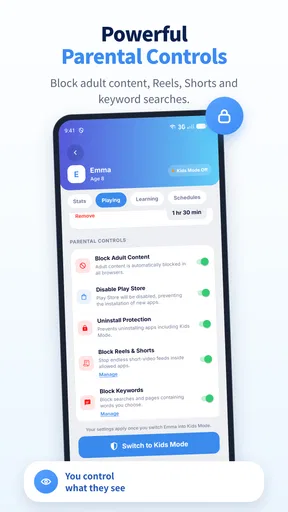
Moreover, you have the ability to block purchases. This means no more unexpected charges on your credit card. It’s like having a digital babysitter that makes sure everything stays under control.
I would still check the device’s own purchase safeguards rather than relying on a kids’ mode alone. A child may encounter purchase prompts in an app that remains available, and restrictions can depend on how the phone and its accounts are configured. Think of blocking purchases here as a helpful extra, not a reason to leave payment settings unchecked or to hand over a device without considering what is already open.
Playtime and Learning Combined
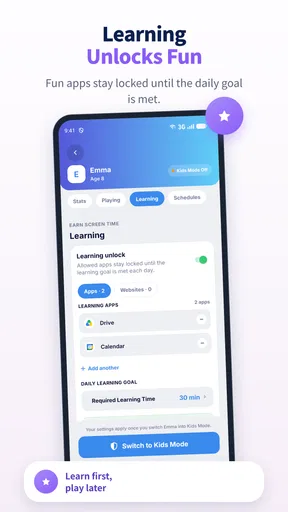
What I appreciate about this app is that it’s not just about keeping your phone secure. It offers educational content as well. There is a curated selection of games and apps that are designed to be both fun and educational. It’s a wonderful blend of entertainment and learning, allowing your child to explore safely.
That mix is best approached with a little parental curation. “Educational” can mean very different things to different families, so I’d preview an activity and decide whether it suits the child’s age, interests, and the kind of screen break you have in mind. If you already have trusted learning apps, making those the focus can be more useful than treating any collection as a ready-made curriculum.
The app also includes a drawing pad, music player, and a camera with funny filters. It’s like having a mini activity center within your phone. My little one particularly enjoyed the drawing feature, which kept them entertained for quite some time.
Those activities make the app more flexible than a setup that only allows passive watching. For a short wait, drawing or listening to music can be a welcome change of pace; the camera filters may be more appealing when an adult is nearby to share the fun. I’d also consider the setting: a music activity may not be a good fit in a quiet waiting room, while drawing can work well when you want something contained and easy to stop.
Design and Usability
In terms of design, the app is bright, colorful, and easy to navigate. The icons are large and clear, so even the youngest of users can find their way around without much trouble. The app doesn’t freeze or lag, which is something I’ve experienced with similar apps in the past. It’s smooth sailing all the way.
One useful habit is to keep the phone’s starting condition in mind. Before a session, close or finish anything private you would not want visible, and check that the chosen activity is ready to use. This is not busywork: a child who taps into an unexpected screen may become frustrated, while a parent may have to take the phone back to fix it. A calm handoff begins with the device prepared, not just with the lock enabled.
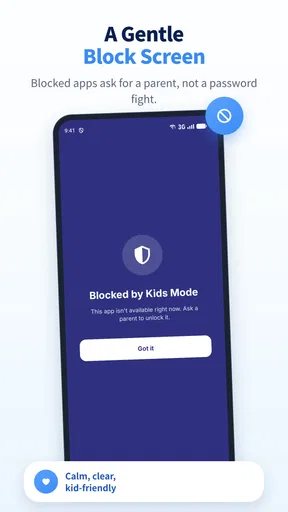
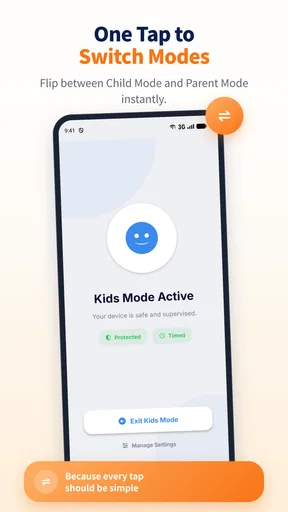
Another highlight is the "child lock" screen, which prevents kids from exiting the app. This means they can’t accidentally hop onto your Facebook or send gibberish to your boss. Trust me, this feature is a lifesaver for avoiding those awkward situations!
When a problem may be outside the app
If a child cannot reach an activity, I’d first revisit the allowed-app choices and confirm that the activity is included. If the session does not behave as expected, end it when possible and set it up again deliberately, checking each selection rather than changing several things at once. That makes it easier to spot whether the issue came from the chosen app, the way the phone was handed over, or a control setting.
There are also times when the phone itself is the limiting factor. If an app you want to allow is unavailable, or the device is needed for something else, switching to a book, toy, or a separate child-focused device may be less stressful than trying to force the phone into a role it cannot comfortably fill. Kids Mode is most useful when the phone is available for a short, planned session and the parent can remain close enough to help.
For an everyday example, imagine waiting for food at a café while your child is getting restless. I’d choose one familiar activity, tell them how long they can use it, and keep the phone on the table where I can see it. If the meal arrives early, I can end the session and take the device back; if the child is still settling in, the timer gives the handoff a clear endpoint. That is a more realistic use than expecting an app to occupy a child indefinitely.
How it compares with other ways to manage screen time
Compared with simply handing over an unlocked phone, a kids’ mode offers a more deliberate boundary around what the child can open. Compared with built-in screen-time controls, its appeal is the child-facing session and the activities described here. The trade-off is that it is centered on use of the device in front of you: parents who want to manage several children’s devices, set broader household rules, or review online activity may be better served by the operating system’s family controls or a dedicated parental-control service.
It is also not necessarily the right choice for every age. A young child who needs help staying within a few selected activities may benefit from a clear, supervised session. An older child who uses a personal device independently may need a different conversation and a broader set of family rules rather than a temporary lock on a parent’s phone. I’d choose the tool based on the child’s maturity and the job at hand, not on the assumption that one mode fits every family.
Who will get the most from it
I’d recommend it most to parents who occasionally lend their own phone and want a simple way to limit what a child can access during that handoff. Its mix of app selection, a timer, purchase blocking, and playful activities suits short stretches at home or while waiting together. It may be less useful if you need detailed monitoring, controls across multiple devices, or a solution that lets a child use a phone independently for long periods.
Kids Mode is free to install, is developed by INNOXAPPS, and is listed for everyone. It has an average rating of about 3.9 from around 1,800 ratings, with more than 100,000 installs. Optional in-app purchases range from about 99 cents to just under $28 per item. I’d begin with the free experience and decide whether it fits your routine before considering any optional purchase.
Wrapping It Up
Overall, Kids Mode - Kids Lock App is a fantastic tool for any parent looking for a way to manage their child's screen time effectively. It offers a safe and engaging environment for children while keeping the rest of your phone off-limits. It’s like having a digital chaperone keeping an eye on things.
If you’re looking for an app that provides both security and a bit of fun, this might just be what you need. Not only does it give you peace of mind, but it also offers your child a safe space to play and learn. It’s a win-win!
My practical verdict is that it works best as a prepared, short-term handoff: choose the allowed activities, set expectations, and stay nearby. I would not use it as a reason to stop checking what a child is doing or to assume every purchase and privacy concern is handled automatically. If that modest role matches what you need, it can make lending your phone feel less risky; if you want wider oversight, built-in family tools or a dedicated service are the more sensible place to look.
Pros
- Parental controls ensure safe browsing.
- Customizable app access for kids.
- Blocks in-app purchases effectively.
- Simple
- user-friendly interface.
- Supports multiple child profiles.
Cons
- Limited educational content available.
- Not compatible with all devices.
- Occasional app crashes reported.
- Some features require premium version.
- Setup process can be time-consuming.
FAQs for Kids Mode - Kids Lock App
What is Kids Mode - Kids Lock App and how does it work?
Kids Mode - Kids Lock App is a parental control application designed to give parents peace of mind by restricting their child's access to certain apps and features on a smartphone or tablet. Once activated, it creates a safe digital environment by allowing only approved apps to be accessed, ensuring children stay within a controlled space.
How do I set up Kids Mode - Kids Lock App on my device?
Setting up Kids Mode - Kids Lock App is straightforward. After downloading and installing the app, you’ll need to create a parent account and set a secure PIN. Then, you can select which apps and features are accessible to your child. The app also allows for customization of screen time limits and monitoring usage.
Is Kids Mode - Kids Lock App safe for my child to use?
Yes, Kids Mode - Kids Lock App is designed with child safety in mind. It provides a secure environment by blocking access to inappropriate content and settings. The app also prevents children from making unauthorized purchases or changes to your device’s settings, ensuring that they can only interact with approved content.
Can I monitor my child's activity with Kids Mode - Kids Lock App?
Absolutely. Kids Mode - Kids Lock App offers monitoring features that allow parents to track their child's app usage and screen time. You can receive reports on what apps are used and how much time is spent on each, enabling you to make informed decisions about adjustments to settings or limits.
What devices are compatible with Kids Mode - Kids Lock App?
Kids Mode - Kids Lock App is compatible with both Android and iOS devices. It supports a wide range of smartphones and tablets, making it accessible for most modern devices. Ensure your device’s operating system is up to date for optimal performance and security features.


